
The Restored Photo Is Sharper. Why Doesn’t the Face Look Right?
By Zechariah Myrick · October 30, 2026 · 8 min read
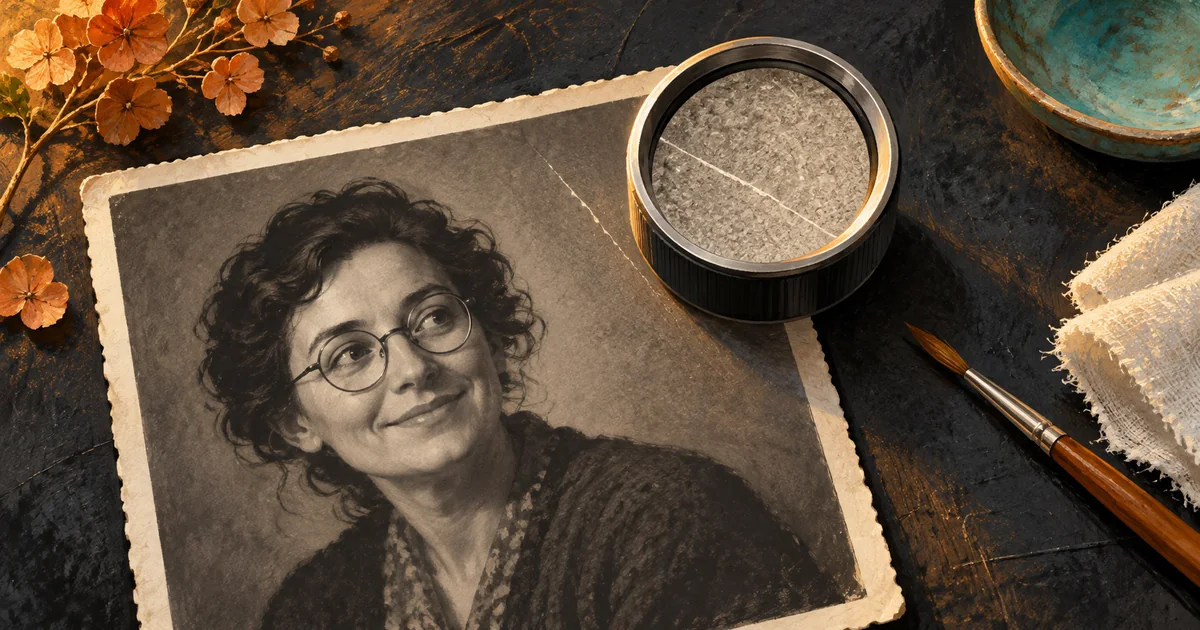
If an AI-restored photograph looks sharper but the face feels wrong, return to the untouched scan. Separate simple cleanup from changes that reconstruct a face, add color, or invent texture. Compare one restrained edit with the source at the same size. Keep the person’s expression and recognizable details ahead of apparent sharpness. A damaged area can remain uncertain; a convincing replacement is not proof of what was there.
This is for someone in Naples or Bonita Springs preparing a family photograph for an album, a personal display, or a meaningful gift. You recognize the person immediately, so “better quality” is not enough. The useful question is whether the edited picture still preserves the photograph you meant to keep.
First decide what you want repaired
A faded print, a scratch across a plain wall, and a missing part of someone’s face are different jobs. Write down the actual damage before trying another all-in-one enhancement. You might want a darker, easier-to-see picture and a few dust marks removed while keeping the grain, expression, glasses, and clothing exactly as recorded.
Modern tools combine several kinds of editing. Adobe’s Lightroom Prompt to Edit guidance, updated September 29, 2026, describes an early-access generative feature with prompts for restoration, unblurring, and colorization. Those are available editing directions, not a guarantee that an individual family likeness will remain unchanged.
Even tools grouped under enlargement have different aims. Adobe’s current Generative Upscale documentation distinguishes a model intended to preserve existing detail from one that adds creative detail. For this project, treat newly convincing texture as something to inspect, rather than evidence that a lost feature has been recovered.
Keep a source that every proposed edit can be checked against
Save the best available scan separately and leave it unchanged. Keep the whole image, including its edges, and a separate image of any writing on the back. Make working copies for experiments. If you have a clearer scan or an earlier digital copy, start there instead of editing the last enhanced export again.
Use names you can understand later: Porch-source.tif, Porch-cleanup-working.psd, and Porch-approved.jpg, for example. The extensions depend on your tools; the important distinction is source, editable work, and approved viewing copy. A filename such as final-final-3 does not explain whether the face was reconstructed or only the background cleaned.
The Library of Congress’s personal-photo guidance recommends descriptive names, descriptions of the files, and copies stored in different places. Include the untouched source in that plan. Check that a backup actually opens; a second folder on the same drive is a weak answer to a failed drive.
Try a small repair before giving the whole image another makeover
Start with the least interpretive change that addresses the problem. Adjust overall brightness or contrast carefully, then evaluate a local dust or scratch repair separately. Leave face reconstruction, colorization, enlargement, and background replacement out of that first comparison. This is a proposed review method, not a universal recipe for every editor.
Where the software supports it, keep corrections on separate layers or behind masks so you can hide one change without discarding the rest. Adobe’s non-destructive editing guide describes editable adjustment layers, separate retouching layers, and masks. These make the work reversible. They do not establish that a proposed repair is historically accurate.
Inspect the original and candidate at the same displayed size, with the same crop. Then look more closely at the face. A larger, brighter candidate can seem better before you notice that the mouth, eyelids, or spectacle frame has changed. Return to the full photograph too: an acceptable close-up still needs to belong to the surrounding image.
A fictional Bonita Springs photograph: keep the smile, leave the uncertainty
Imagine a fictional Bonita Springs family preparing a monochrome porch photograph for an album to share with relatives in Naples. The person wears thin round glasses and has a slight, uneven smile. A pale scratch crosses the wall behind the head; a separate crease partly obscures one eye. This is an invented example, not a client photograph or a restoration result.
The first automatic candidate removes both marks and makes the whole picture crisp. But the glasses become thicker, the smile turns symmetrical, and the obscured eye now has a clear new outline. Those changes would be reasons to set that candidate aside. They solve the appearance of damage by changing details the family wanted to preserve.
A more useful comparison begins again from the source. One working copy makes a modest tonal adjustment. A separate local correction addresses the scratch in the plain wall. The crease near the eye remains visible unless a limited repair can be made without asserting a new eye shape. The family can prefer that restrained version even though it still looks like an old photograph.
Another photograph of the same person might help the family judge whether a candidate feels recognizable. It cannot prove exactly what the damaged eye looked like in this particular exposure. If they also want an imaginative reconstructed portrait, give that version its own name and explanation. Do not let it replace the source or quietly become the family’s “original.”
Judge likeness before you judge polish
- Expression: Is the mouth still in the same position? Has a quiet expression become a broad smile?
- Recognizable features: Compare the outline of the face, eyes, glasses, hairline, and any distinctive mark that is actually visible in the source.
- Surrounding detail: Check jewelry, clothing fasteners, hands, nearby objects, and writing. A tidy new detail can be as misleading as a changed face.
- Uncertainty: Identify what the source does not show clearly. Keep that uncertainty in the approval notes instead of asking the tool to settle it.
Invite someone who knows the photograph to review a small number of candidates, with the source beside them. Ask which detail changed, rather than simply which picture looks best. Record a decision such as “keep the original mouth; accept the wall cleanup; leave the eye crease.” That gives an editor a useful correction and keeps the next revision focused.
Colorization is a separate creative choice. A plausible blue dress is not proof the dress was blue. If no reliable color reference survives, describe the colorized version as an interpretation and keep the monochrome source alongside it. You can enjoy that interpretation without treating it as a new historical fact.
Choose the work before choosing another subscription
If the source is clear and only the tone needs attention, a short session in an existing editor may be enough. Local damage near eyes, mouths, fine hair, or lettering calls for slower, selective work and closer review. A large album adds file organization and consistent approval decisions. Those are different cost drivers; a stronger automatic setting does not remove them.
Try one representative photograph before commissioning an entire collection. Agree what may change, which areas should remain untouched, and how you will review the sample. Ask for the source, the editable file where practical, an approved viewing copy, and a brief note describing substantial reconstruction. If a fragile physical print needs treatment, consult a photograph conservator; editing a digital copy does not repair the object.
For planning chapters or gathering recordings, the family-history guide covers that larger project. If the approved image later needs a particular print size, use the print-preparation guide. Settle the restoration first so the file handed onward is the version you actually approved.
Get help making a version you recognize
AI Dream Builders offers hands-on creative workflow and AI project help in Naples and Bonita Springs. Zechariah Myrick can assess the source and editing process, compare conservative options, and scope a supervised sample. A useful first paid deliverable can be one source-to-edit comparison, a reviewed cleanup candidate, and an editable handoff with unresolved areas clearly identified. Suitability depends on the image and the work required; some missing details cannot be established from the available source.
When you call (239) 544-6990, say: “I have an old photo, and the enhanced version changed the face. I want help keeping the likeness.” Mention whether you have the scan, the original print, and the edited version. The initial conversation is free. Scope, price, ownership, ongoing costs, and support are agreed before paid work. Use the call link below or describe the photo project here. A general description is enough for the form; keep private family photographs and account details out of it.
Sources and local context
- Edit photos using prompts — updated September 29, 2026; checked October 30, 2026 — Adobe
- Enhance image quality with Generative Upscale — updated May 20, 2026; checked October 30, 2026 — Adobe
- Non-destructive editing techniques — updated September 28, 2026; checked October 30, 2026 — Adobe
- Keeping Personal Digital Photographs — undated guidance; checked October 30, 2026 — Library of Congress