AI Art Looks Sharp on Your Phone but Blurry in Print? Start With the File.
By Zechariah Myrick · October 23, 2026 · 7 min read
A sharp phone preview does not tell you how an image will look as a large print. Start with the original file’s pixel dimensions, the finished print size, and the crop. Then ask the printer what resolution and file format it needs. Changing a ‘DPI’ number alone will not create missing detail. Enlarge a copy only if necessary, inspect the changes, and approve a proof before ordering the finished piece.
This is for a creator in Naples or Bonita Springs who already likes an AI-assisted image and wants to put it on a wall, give it as a gift, or include it in a finished personal project. You have made the creative decision. Now the question is whether the file can support the physical result you have in mind.
Find the original image, not the version in a message
Download the approved image from the tool or project where you made it. Keep that original unchanged. A screenshot, a social-media copy, or an image forwarded through a messaging app may be a different file. Check its actual width and height in pixels rather than judging the thumbnail or file name. Save a separate working copy for cropping and print preparation.
Also confirm which version you approved. It is easy to send the printer an earlier draft with a misshapen hand, unwanted lettering, or a detail you already fixed. Put the approved image somewhere outside the chat and give the working file a useful name. A bigger export of the wrong version still leaves you with the wrong artwork.
Work out how many pixels each printed inch gets
For an image file, pixels per inch—ppi—describes how its pixels are spread across the printed size. Divide the pixel width by the intended width in inches, and do the same for the height. Adobe’s image-size and resampling guide, updated September 28, 2026, explains this relationship and why changing physical size without resampling keeps the same pixels.
Here is a worked calculation, not a print-quality test. Suppose your portrait-oriented image is 2,400 × 3,600 pixels and you keep the whole image, with no crop. The same file gives you:
- 8 × 12 inches: 300 ppi, because 2,400 ÷ 8 and 3,600 ÷ 12 both equal 300.
- 12 × 18 inches: 200 ppi, with the same original pixels spread over more paper.
- 16 × 24 inches: 150 ppi, before any enlargement software adds pixels.
These numbers describe the file; they do not grade the artwork. Adobe’s print-resolution guidance identifies 300 ppi as a common high-quality target and explains that viewing distance affects what works for larger prints. Ask your printer about the particular paper or canvas, print size, and expected viewing distance. Treat its requirements as the starting point rather than a universal rule from an online calculator.
Choose the crop before you decide the file is big enough
The proportions matter too. A 2,400 × 3,600 image has a 2:3 shape. An 8 × 10 frame has a different shape. Filling it means cropping part of the image; keeping the whole composition means accepting a border or choosing another frame. Enlarging cannot settle that creative choice for you.
If you crop that example to 2,400 × 3,000 pixels, it fits 8 × 10 at 300 ppi. But what did the crop remove? Check the bird’s feet, the edge of a face, a signature, or the breathing room around the subject. Decide what the viewer should see before preparing the final export. For a wrapped canvas, ask the printer how the image will extend around the sides; the visible front is only part of that decision.
When enlargement helps—and what it cannot promise
You have several reasonable options: make a smaller print, add a border, obtain a larger original export if the tool offers one, or enlarge a copy. Start with the least disruptive option that fits the project. Changing the resolution label with resampling switched off merely changes how the existing pixels map to inches. It does not supply a more detailed source image.
Current tools include ordinary resampling and AI-assisted enlargement. Adobe documents Generative Upscale in Photoshop; features and availability depend on the application and model you use. A larger output needs visual review. Inspect faces, fine lines, fabric, foliage, and lettering against the approved original. Reject changes that make the file look sharper by changing something you wanted to keep.
Do not keep enlarging an enlarged copy just because each preview looks more detailed. Return to the original when comparing another method. Added texture is not proof that the tool recovered an authentic detail. If the artwork includes a family likeness, a meaningful written phrase, or a recognizable object, preserving that feature may matter more than a crisp-looking surface.
A fictional Bonita Springs print decision
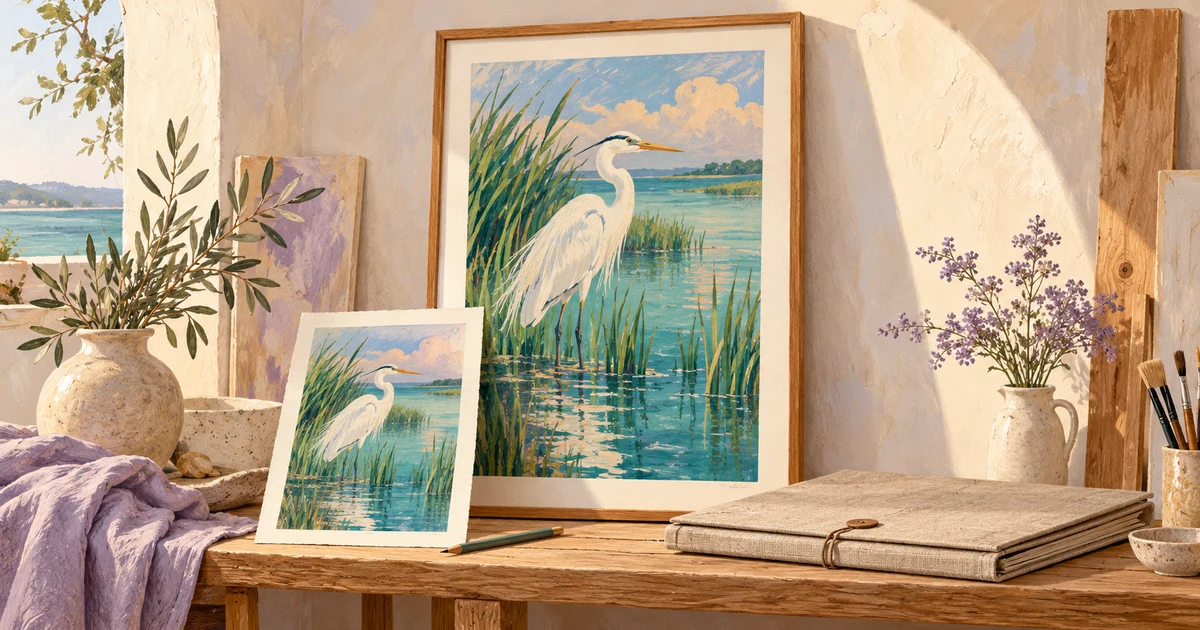
Imagine a Bonita Springs creator making a coastal bird picture as a gift. This is a fictional example, not a client project or measured result. The approved file is the 2,400 × 3,600 image above. They want a 12 × 18 print, and the chosen printer asks for 300 ppi for that job. That request calls for 3,600 × 5,400 pixels.
The creator can discuss printing the existing file at 200 ppi, choose an 8 × 12 print with a larger mat, or prepare an enlarged candidate. Suppose the candidate has convincing feathers but has changed the shape of the beak. That is a reason to revise it or choose another route, even if its pixel dimensions now satisfy the upload checker. Passing a file check is different from approving the picture.
A useful next step is to ask the printer for an actual-size detail proof from the proposed final file. Include the beak and fine grass, or whatever detail will make the decision clear. Do not shrink the entire poster onto a small sheet and treat it as an enlargement test. Confirm the proof’s scale and production settings with the printer; a home print can help you spot a problem but cannot establish how a different printing process will reproduce it.
Get the handoff right before paying for the finished print
Ask the printer for its preferred file type, color setup, finished size, and any bleed or wrap requirements. Follow that printer’s instructions rather than converting every image to the same format or color mode. Confirm whether its upload process will crop, sharpen, or otherwise adjust the file. Keep the approved export separate from the editable working file.
Your handoff should identify the exact file, intended size, chosen crop or border, and the proof you approved. If you change the image afterward, tell the printer and check whether another proof is needed. Keep the original, working version, and final export so you can understand what changed and make a different size later.
Costs depend on what the image needs: finding the original, careful cropping, repairing a generated defect, testing an enlargement, or preparing an export to a printer’s specification. A new subscription is not automatically the missing piece. Sometimes the best answer is a smaller print that keeps the image you liked.
Turn the image you like into a file you can confidently discuss with a printer
AI Dream Builders helps people in Naples and Bonita Springs with creative AI workflows and hands-on project work. Zechariah Myrick can assess an existing image, compare proportionate file-preparation options, and scope the work needed for the intended output. A useful first paid deliverable can be a file assessment, one approved crop or enlargement candidate, and a proof-ready export to the printer’s stated requirements. The printer confirms its production requirements and the physical result; not every source image can support every requested size.
[Call (239) 544-6990](tel:+12395446990) and say: ‘I have an AI image I want to print at this size, and I need help preparing the file.’ Start with the intended size, the image’s pixel dimensions if you know them, and where it was created. The initial conversation is free. We agree scope, price, ownership, ongoing costs, and support before paid work begins. You can also describe the print project here. Please leave passwords and private family images out of the form.
If the image keeps changing before you reach this stage, the guide to keeping an AI character recognizable addresses that separate problem. For explaining your creative decisions when sharing finished work, see the art-process guide.
Sources and local context
- Image size, resolution, and resampling — updated September 28, 2026; checked October 23, 2026 — Adobe
- Resolution specs for printing images — updated February 23, 2026; checked October 23, 2026 — Adobe
- Enhance image quality with Generative Upscale — updated May 20, 2026; checked October 23, 2026 — Adobe