
Why Does Your Estimate Form Make Customers Sign In to Upload Photos?
By Zechariah Myrick · November 10, 2026 · 6 min read
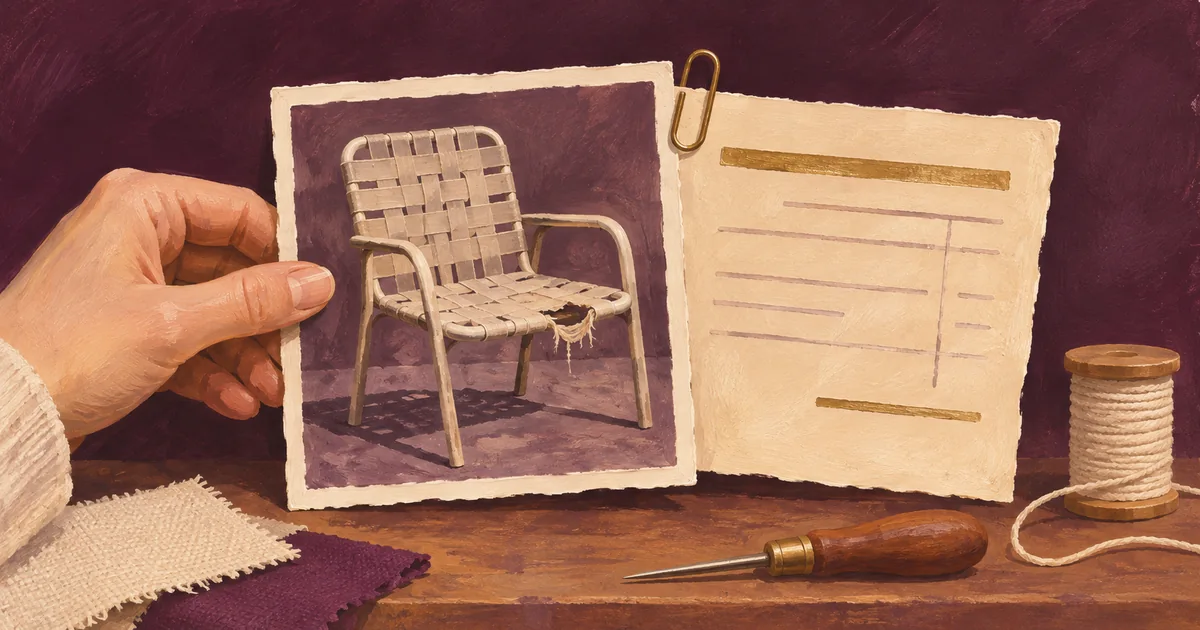
Open your estimate form on a phone while signed out. If the photo question sends you to a login screen, let customers submit a short written request first. Then offer a separate way to send only the photos your estimator needs, tied to that same request. Keep the sign-in step only when the people submitting are supposed to have accounts.
A Bonita Springs or Naples home-service office can learn a lot from a photo. But when the choice is “create an account or leave,” an estimator may never see the job description. Start by deciding whether the photo is needed to accept the request or simply helps the estimator prepare.
Find the point where the customer gets stuck
Use the exact public link from your website in a private browser window on a phone. Check it before you enter anything. If it asks for an account immediately, review the form’s audience and access settings. If the text fields work but adding a picture opens a login prompt, the upload control itself may be the cause. Test submission only on an approved test copy with a sample image, so the office does not receive a fake job in its live queue.
Google’s respondent troubleshooting guide says a respondent needs a Google account to upload a file. Making the form available to more people does not remove that requirement. Microsoft’s Forms file upload documentation restricts upload questions to forms that accept responses from people in the organization or specified people in it. That is useful for internal work orders, but it is a different audience from the general public.
Separate a login problem from a file problem. A customer who reaches the upload screen but cannot attach a picture may be running into a file type, count, or size limit. Test with one image taken on the kind of phone your customers use, and make the form tell them what they can do next if that file is rejected.
Decide which photo changes the next decision
Ask your estimator what they do differently when an image is present. A wide view might tell a patio furniture repair team whether it works on that style of chair. One close view might show which seam tore. Neither photo necessarily establishes the final scope, material, or price. If the photo rarely changes what happens before a phone call, put it after the request. If an image genuinely decides whether the job is in scope, explain why and offer a second way to start for customers who cannot upload.
Fictional example: A small window-screen repair shop in Bonita Springs serves customers in both cities. A customer in Naples needs a torn screen replaced but cannot tell whether the frame is bent. The shop’s Google Form accepts a description but requires sign-in to attach photos, so the customer stops at that question. The office changes the public intake to name, reply method, service area, and a short description. Once the request is saved, the estimator can ask for one straight-on view of the screen and a close view of the suspect corner. There is already a request to reply to if the photos never arrive. The estimator still confirms the job by conversation before quoting.
Pick the path the office can actually maintain
If photo requests are occasional, have the estimator ask for them through the office’s existing approved reply channel. It is simple and gives the estimator a chance to request a useful angle. The tradeoff is a second step for both sides. Decide who checks that the photos reached the correct request and where the final copies belong; otherwise a useful image can disappear into a personal mailbox.
For regular follow-up, a file request may work if it fits your account and policies. Microsoft’s OneDrive file request documentation describes a link that allows uploads without letting recipients view the folder contents. It also notes that people with the link can upload, and availability depends on administrator settings. Treat the link as shareable, verify how it is issued and retired, and keep the upload associated with the estimate. A name typed by an unsigned visitor is not proof of who sent the file.
If staff handle enough photos to need one integrated path, a site form can be designed to save the request and handle attachments separately. The important behavior is that a failed or skipped upload does not erase the written request. Agree which files you accept, how you keep uploads private, what staff can see, and when files are removed. Ask for photos of the object or repair area, without unrelated people, documents, or access details in view. A native feature may cover the need; a custom connection makes more sense if the files and request must land together in a job system and staff are matching them by hand.
Test the handoff, not just the upload
On the test copy, send a written request without a photo, then attach an acceptable sample photo using the proposed path. Check that the office sees it on the right request. Try one deliberately unsupported file and verify that the customer can still proceed with the written request. If the form saves a request but the alert does not arrive, use the separate inquiry delivery guide to trace what happens after submission.
Get the estimate intake working on a customer’s phone
AI Dream Builders is an independent Naples studio offering websites, custom software, and workflow integrations. Zechariah Myrick can review your current setup and implement a suitable intake path where the platform and account support it. A useful first paid deliverable is one tested estimate flow: a signed-out customer can submit a written request, the office can locate it, and a sample photo can be matched to it when needed.
Call and say: “Our estimate form asks customers to sign in before sending photos.” Have the public form address and the kind of photo the estimator needs. The initial conversation is free; we agree on scope, price, ownership, ongoing costs, and support before paid work begins. Use the call button below or describe the issue through the existing contact page. Leave customer photos, private job details, and passwords out of the contact form.